
Do you have a regular phone recording and want to see how it would look in a different location, with a different item or outfit? Higgsfield Genjutsu in Object Swap mode allows you to prepare a new version of the image based on the video and reference photos. This guide shows the entire process without assuming editing experience: from devising the movement, setting up attachments and prompts, to reviewing the finished clip. Two original examples demonstrate how to plan a scene with a car and a scene in a greenhouse.
The "before" and "after" images below are conceptual illustrations created for this guide. They are not frames from rendered video. The tool's features were tested on October 4, 2026; button names, limits, and export quality may change.
The Simplest Rule: Record the Action You Want to Keep
Genjutsu uses the source video as a movement plan. If someone grabs a doorknob in the recording, they will also try to grab the doorknob in the new version. If they lean over a plant, the hand will still be directed there. Therefore, the first question is not "what should I enter in the prompt?" but: what movement do I want to see in the finished scene?
This is particularly important when swapping an item. The new object should be holdable in a similar way. A thin gardening meter can be swapped for a small scanner; it is very difficult to convincingly swap it for a large suitcase without changing the arm position. The model can improve the appearance, but it is not worth expecting it to perform physically impossible choreography.
Work Plan in Five Stages
| Stage | What You Do | What You Check |
|---|---|---|
| 1. Film | You record a short, clear shot. | Face, hands, contact with the prop, frame stability. |
| 2. References | You gather photos of the person, object, outfit, or location. | Each photo has a specific role and fits the movement. |
| 3. Genjutsu | You select Object Swap, add the video and images. | File numbering corresponds to the prompt. |
| 4. Prompt | You describe the changes and constant elements. | No conflicting commands or impossible relationships. |
| 5. Review | You watch the whole thing and download the result. | Movement, identity, background, light, sound, and ending. |
1. How to Record Good Material with a Phone
You don’t need a professional camera. You need material from which movement can be clearly read. Clean the lens, choose a location with even lighting, and do a short test. Watch the test on a larger screen: can you see the face and fingers? Is the person not blocking the object for half the shot? Does strong light behind them turn them into a silhouette without details?
- Plan the Beginning, Middle, and End
In the car scene: approaching the door, hand on the doorknob, opening. In the plant scene: raising the meter, touching the soil, looking at the reading. Each action has a clear beginning and end. Avoid sudden jumps out of frame.
- Leave Room for the Future Object
If a regular car is to become a wider roadster, do not frame the car right at both edges. If the entire environment is to change, show enough background so that the new location is clear.
- Maintain Consistent Lighting
The model must reconcile the person's shadow with the new scene. Soft afternoon light is easier than a mix of harsh sunlight, neon lights, and flash. Record the direction of existing light in the prompt.
- Record Several Variants of the Gesture
Two or three short shots give a better chance for a simple movement. Choose the one where the fingers do not blend with the background, the face is visible, and the important object does not rotate abruptly.
The official tool page shows the length ranges of clips depending on the available version. Before recording, check the current limit in your panel and trim the source to it. Similarly with resolution: choose the quality that your plan offers, instead of assuming that the 1080p option is available for everyone.
2. Gather Reference Photos
A reference photo tells the model what should appear in the new version. It’s best if each file has one function: person, object, outfit, location. A shot of the entire vehicle from the side and three-quarters will be more useful than an artistic close-up of the headlight if the car is almost fully visible in the film. For the outfit, show the style and color without covering the sleeves. For the location, choose a wide shot that explains the spatial layout.
Name the files before uploading, for example person.jpg, car.jpg, villa.jpg. In the prompt, you can use labels like @Video 1, @Image 1, etc., if your interface describes them that way. The order has no magic of its own; it’s about making sure the number in the text leads to the correct photo. After uploading, look at the thumbnails and compare them with the reference map.
Do not include other people's faces, voices, brands, or protected materials without the appropriate rights. When working on client commissions, also determine whether the finished film can suggest real events. Original, neutral references save many problems during publication.
3. Where to Click in Genjutsu
Go directly to higgsfield.ai, log in, open Genjutsu, and select Object Swap. Upload the video to the editing material field. Then add images to the character, product, clothing, or environment reference field. Enable the prompt field if it is hidden behind a switch, and paste the task description. Before clicking “Generate,” check the model, cost, length, aspect ratio, and offered quality. You can find the finished material in the generation history or in the project library, depending on the current version of the panel.
Object Swap is used to modify specified elements of the existing clip. If you primarily want to transfer movement to a completely new world, also check Motion Transfer. In this guide, we use Object Swap because we want to maintain the action layout from the phone.
Example A: Regular Car in Front of a House → Roadster by a Seaside Villa
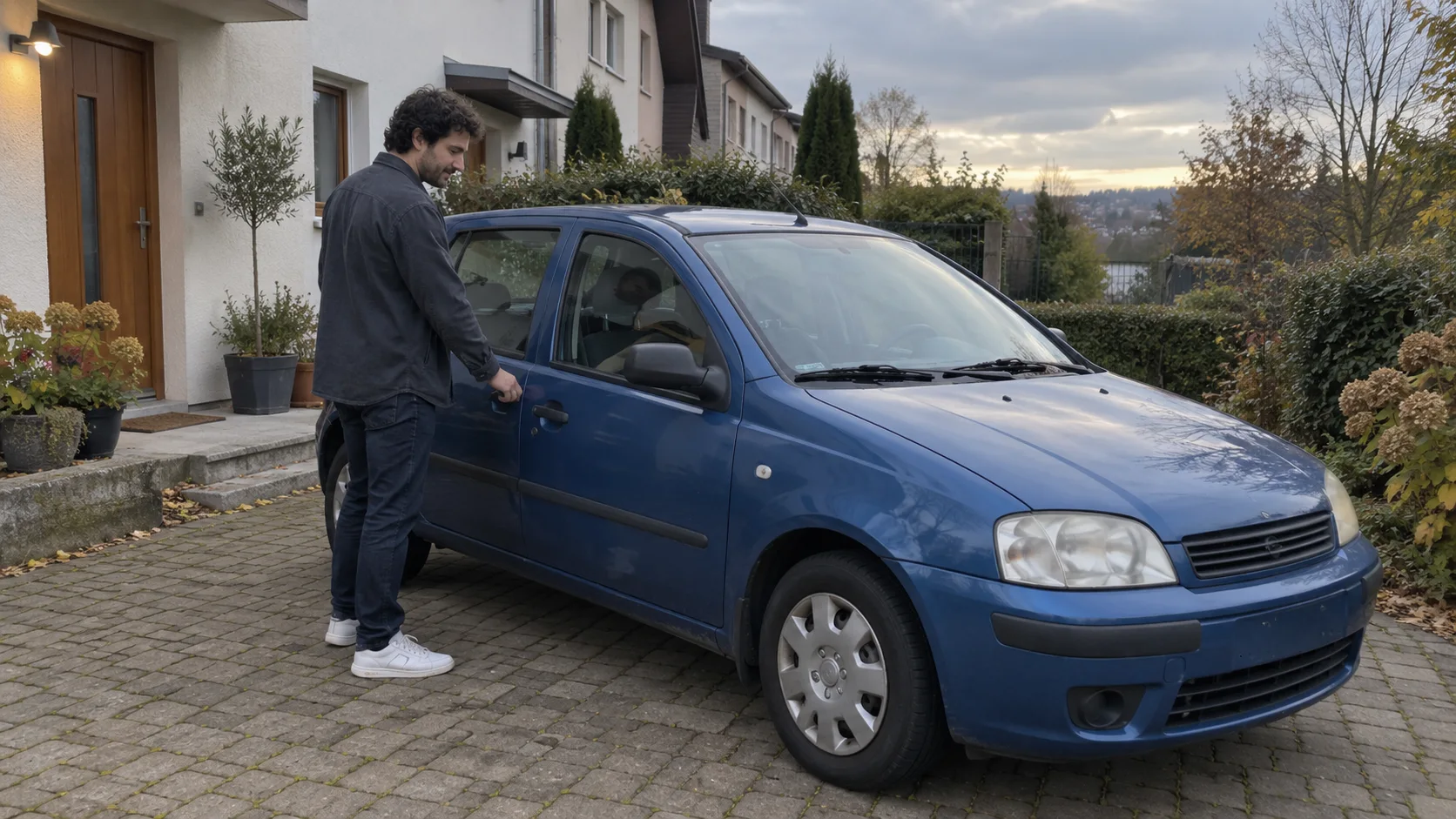
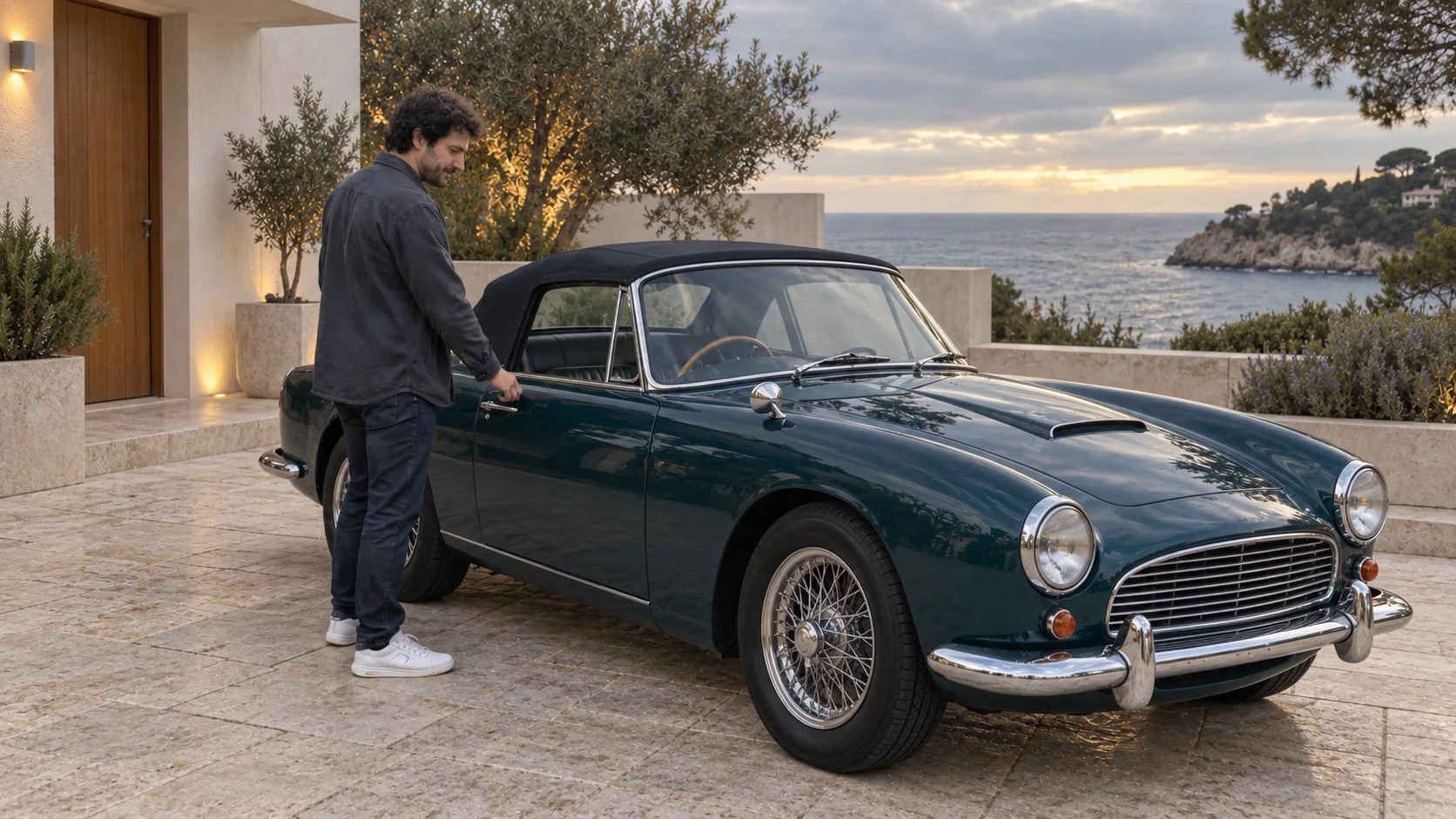
In the recording, an adult man approaches a blue car and touches the doorknob. In the resulting variant, the car changes into a uniquely designed, dark turquoise roadster, and the driveway becomes a courtyard by a modernist villa. The word “roadster” describes the type and proportions of the car; it does not require copying a specific brand. The most important detail is the contact of the hand with the doorknob. If the doorknob of the new vehicle is too far away, the scene will cease to be credible even if the paint and background look great.
File Map
| File | What It Contributes |
|---|---|
@Video 1 | Human movement, car position, camera, time, and sound. |
@Image 1 | Clear face of the person, if identity needs reinforcement. |
@Image 2 | Roadster visible from a similar angle as the car in the recording. |
@Image 3 | Courtyard of the villa with space for the vehicle and a sea background. |
Edit the image of the film @Video 1. Maintain the duration, hand movement to the doorknob, steps, facial expressions, camera path, framing, and original sound. The person should retain the face from @Image 1 and the same size and position in the frame.
Replace the blue car with a dark turquoise, uniquely designed roadster from @Image 2. Position the new vehicle in the same location and orientation. The driver’s door handle should be exactly under the person’s hand at the moment of touch and during opening. Maintain realistic reflections of the sky and surroundings on the paint; no logos or readable license plates.
Replace the neighborhood driveway with the courtyard from @Image 3: bright stone surface, low modernist house, and sea in the distance. Keep the direction and softness of the light from @Video 1; the shadows of the person and car should match. Do not add other people or vehicles. Everything not mentioned as a change remains consistent with @Video 1.
After generation, stop the film just before touching the doorknob, during, and immediately after opening the door. Check if the number of car doors remains constant, the hand does not penetrate the metal, and the interior visible after opening matches the vehicle. These are more challenging points than a static showcase frame.
Example B: Urban Garden → Old Research Greenhouse
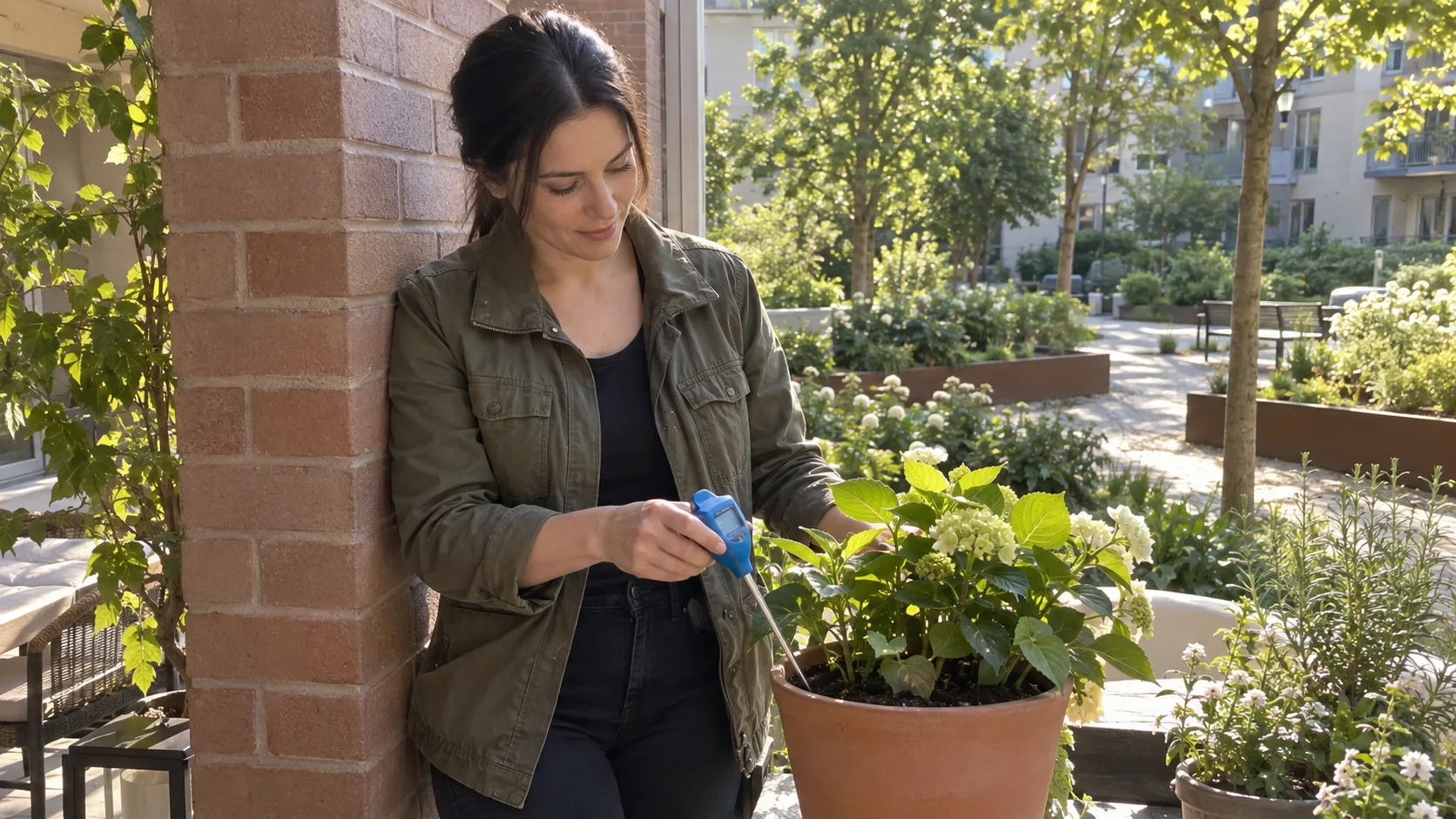
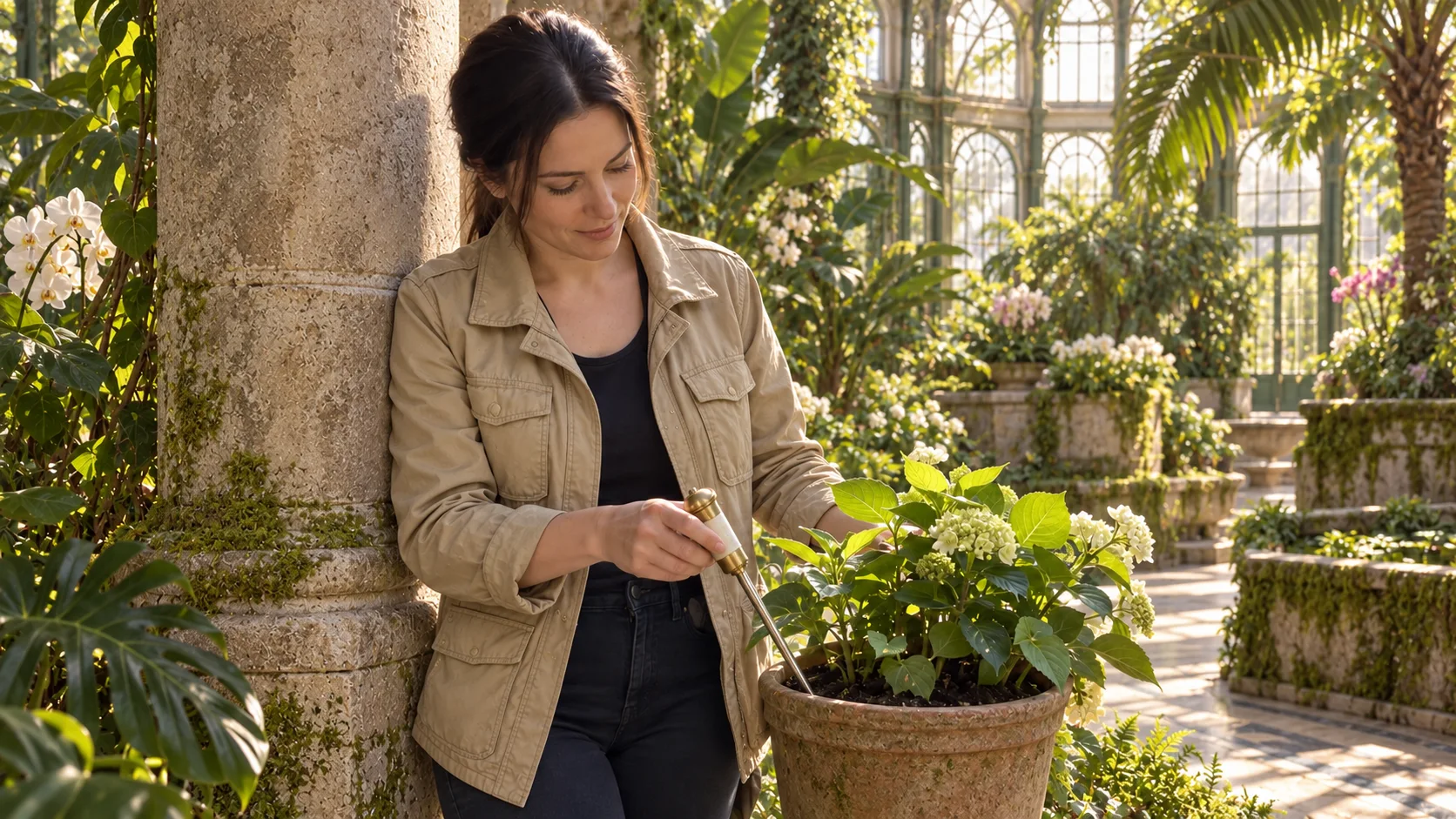
The second scene practices another principle: swap an item for an object with a similar grip. The heroine touches the ground with a gardening meter, leaning against a brick pillar. In the resulting version, she stands in a historic greenhouse, holding a small botanical scanner, and the pillar becomes a stone column. The hand movement does not require rethinking from scratch. Swapping the column is important because the body leans against it; the new element must maintain the same position and contact surface.
File Map
| File | What It Contributes |
|---|---|
@Video 1 | Gesture of bringing the meter closer to the plant, body, camera, and sound. |
@Image 1 | Identity of the heroine, if a separate portrait is needed. |
@Image 2 | Sand-colored field jacket; without copying the model from the photo. |
@Image 3 | Small botanical scanner with proportions similar to the meter. |
@Image 4 | Interior of the old greenhouse with stone columns and plants. |
Create a new version of the image @Video 1. Maintain one continuous camera work, shot length, movement and position of the heroine, her gaze at the plant, and body contact with the pillar. Keep the original sound.
The heroine remains the same person from @Image 1. Replace her jacket with a sand-colored field jacket from @Image 2, without changing the body shape and without moving the face of the person from the outfit photo.
Replace the blue meter in her RIGHT hand with a small botanical scanner from @Image 3. The scanner remains in the same grip and angle, and its tip is directed towards the plant. The left hand remains as in the source film. Do not add a second device or text on the scanner screen.
Replace the urban garden with the interior of the greenhouse from @Image 4: iron arches, high glass, lush vegetation, and stone pots. The brick pillar that the heroine leans against becomes a stone column in exactly the same place and of the same width. Maintain the direction of afternoon light and realistic shadows. Do not add other people, logos, or readable text. Other elements remain consistent with @Video 1.
In this scene, control the tip of the scanner and the place where it touches the plant. If the model changes the length of the device, it may pass through the leaves or soil. Also check the boundary between the shoulder and the column: the new texture should not give the impression that the character suddenly detaches from it.
How to Write Prompts That Can Be Improved
Start with one sentence about the task: “edit the image @Video 1.” Then write down the constant things: movement, time, camera, person, sound. Next, describe each change in a separate paragraph. Finally, add a short block against additional people, text, and unplanned changes. This structure makes diagnosis easier: when the car fails, you improve the paragraph about the car; when the background fails, you improve the paragraph about the background.
Do not simultaneously demand “exactly the same light” and “completely different time of day,” unless you describe how the lighting should change. Do not ask to maintain the same size of the car if the new type has clearly different proportions, without indicating which points must overlap. The most valuable are geometric relationships: hand to doorknob, foot to floor, back to pillar, device to plant.
After Generation: A Simple Checklist
- Watch the entire film, not just the thumbnail from history. An error may appear in one frame during the hand's rotation.
- Compare the movement with the original: the beginning of the gesture, contact point, end of the gesture, steps, and any cuts.
- Check identity: face, hairstyle, height in the frame, hands, and clothing at the beginning, middle, and end.
- Check the space: does the new car not change models, and does the greenhouse not “float” during the camera panorama?
- Check the light: the direction of shadows on the person, object, and ground.
- Listen to the sound: the original speech should still match the lip movement. The tool may change the image itself, so do not assume a new voice.
- Check the end: the result may have a different number of frames than the source file. Synchronize audio in the editor if necessary.
When the Effect Doesn’t Work the First Time
| Symptom | Likely Cause | What to Do |
|---|---|---|
| Hand misses the doorknob | The new car has a different door layout. | Select a reference with a similar angle and mark the position of the doorknob relative to the hand. |
| Item disappears or duplicates | Too fast movement, occlusion, or unclear number of items. | Indicate the hand, grip, and “exactly one”; choose a simpler segment. |
| Face changes midway | Not clear enough reference or conflicting images. | Add a well-lit portrait and name the role of each photo. |
| Background has a different perspective | The photo of the location shows a completely different camera angle. | Use references from a similar height and direction of view. |
| Scene looks like a paste-in | Shadows, sharpness, or graininess do not match. | Describe the direction of light and the behavior of the phone image; limit the number of changes. |
Each subsequent run may cost time or credits. With a challenging shot, first test one swap on a shorter segment. Once the hand and new object work, add wardrobe or background. Keep the source version and selected results separately. Combining segments in the editor with a simple cut may give better control than redoing the entire long film.
What’s Next?
This exercise is the easiest entry into editing existing material. If you want to build an AI film from the first frame, read our Soul 2.0 → Seedance 2.5 → Genjutsu guide. If you need to swap several elements in exact time intervals, go to the detailed guide on character, prop, and background on the timeline. Planning scene compositions will also be aided by our text on focal lengths in AI films.
Comments (0)
No comments yet. Be the first!