
A restored photo of your grandmother can be a beautiful gift and the beginning of a family archive. However, the best result retains the likeness of the person in the photograph: their age, gaze, facial proportions, and clothing. In this workshop, you will go from a safe scan to repairing scratches, gentle sharpening, and optional coloring. You will also receive prompts and a method for comparing versions that helps notice changes made by AI.
The documentation was verified on October 27, 2026. Features and availability of tools may depend on the version, device, account, and plan. We do not guarantee the preservation of every detail by the generative model. The practice photographs in this article depict fictional individuals and were created by AI; they are not historical documents.
What Do You Want to Recover: Damage, Readability, or Imagined Color?
| Purpose | Example | How to Evaluate the Result |
|---|---|---|
| Removing Damage | Scratch on the background, spot, paper crease | Did the repair change the neighboring face and texture? |
| Improving Readability | Gentle contrast, noise reduction | Did the grain and natural skin remain credible? |
| Reconstructing a Missing Piece | Torn piece of clothing or face | This is partly conjecture; it needs to be marked |
| Coloring | Skin color, dress, and surroundings | Without an additional source, we do not know the actual colors |
| Artistic Change | New background, rejuvenation, smile | This is a modification that should be kept separate from restoration |
Sharpening may look convincing, although the model added eyelashes, teeth, or fabric texture that were not present in the scan. The color may be aesthetic but unverified. For a family archive, keep the original digital file, the repaired version, and the colored version as separate files.
Your Own Example: From a Damaged Image to a Colored Version
We prepared a synthetic photograph of a fictional couple styled from the mid-20th century, and then made successive edits of the same image. The first repairs the damage, while the second adds a color interpretation. This is the actual sequence of AI edits of our practice material, not three independent photographs pretending to be restoration.
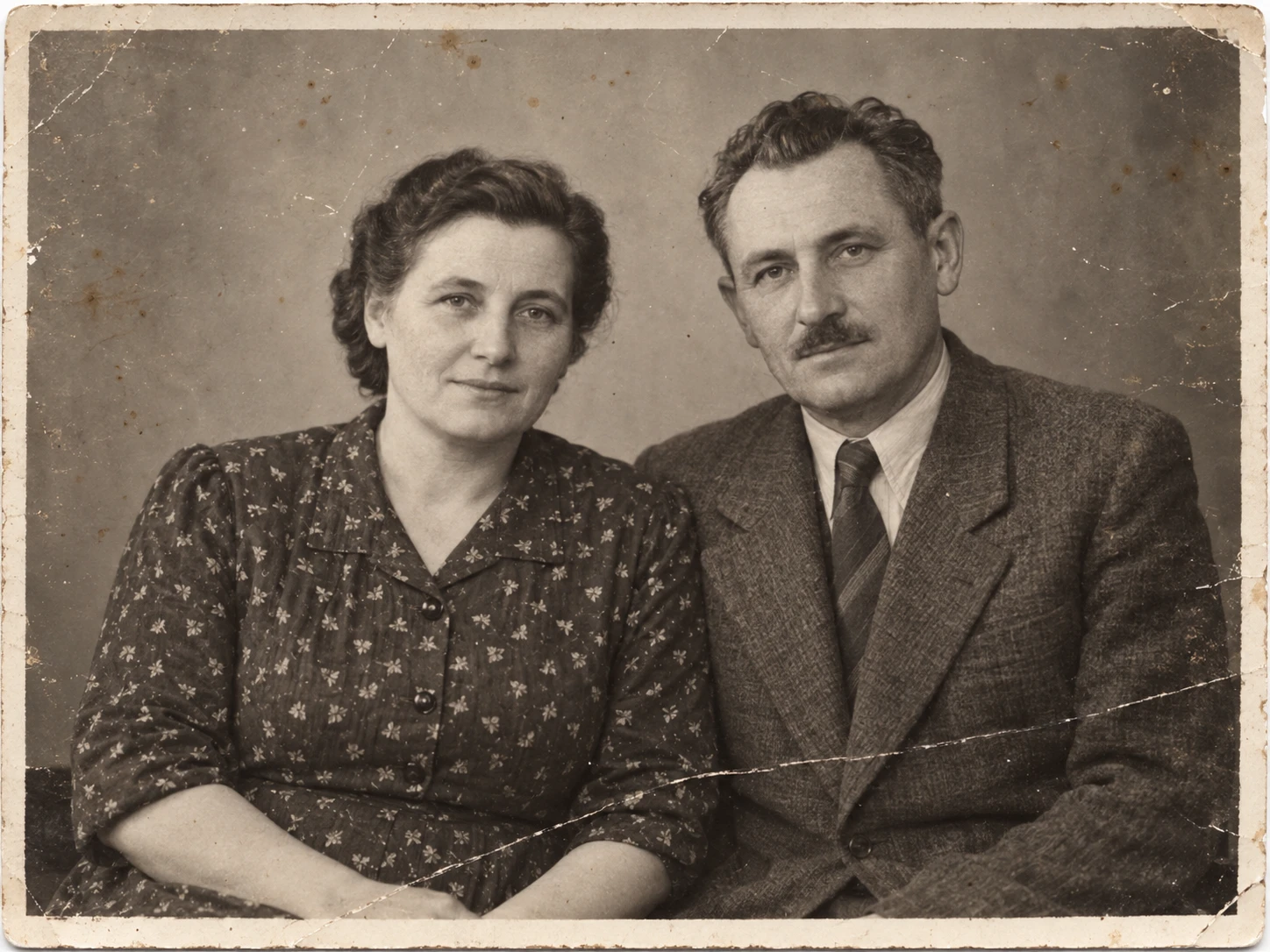
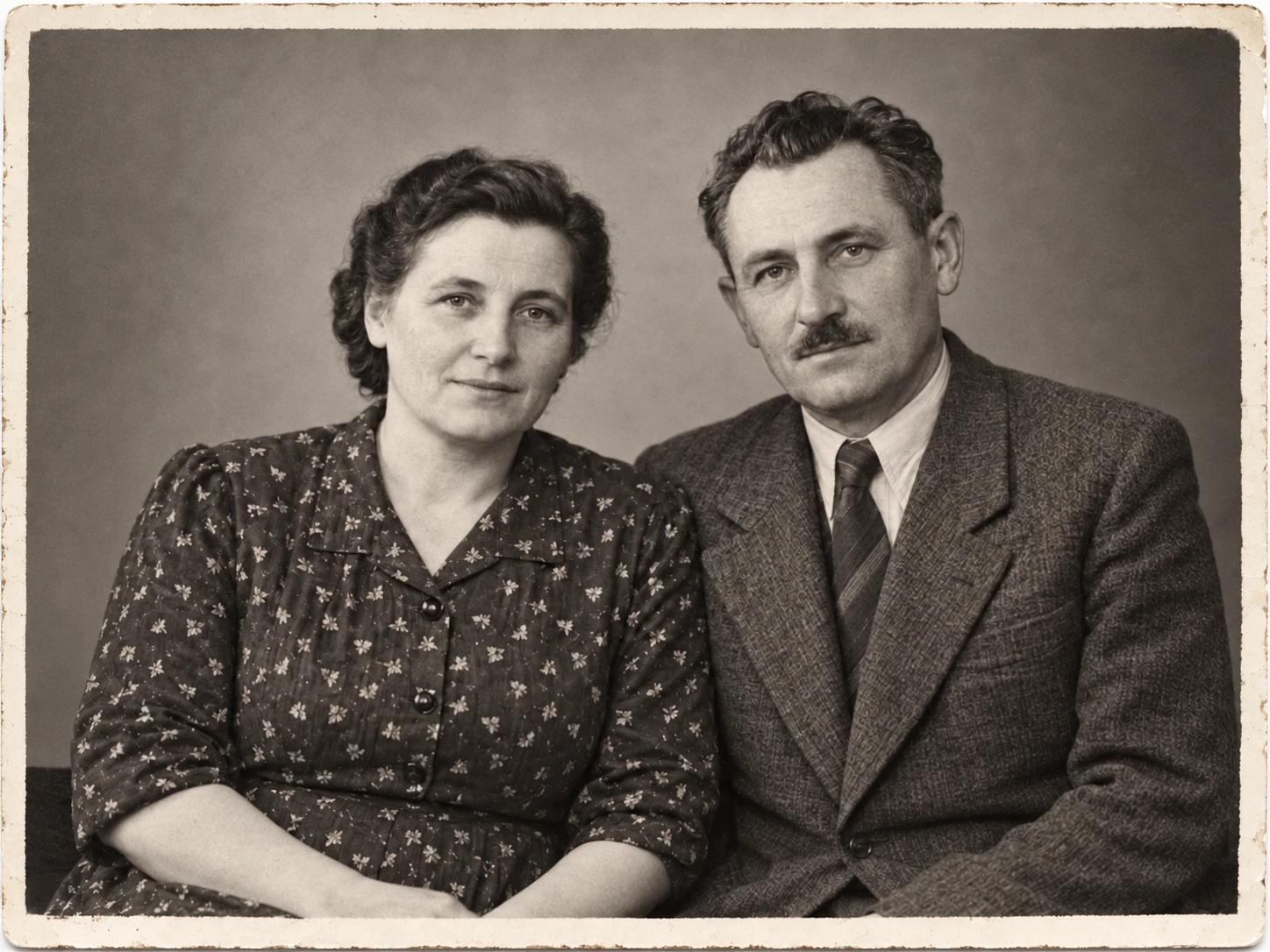
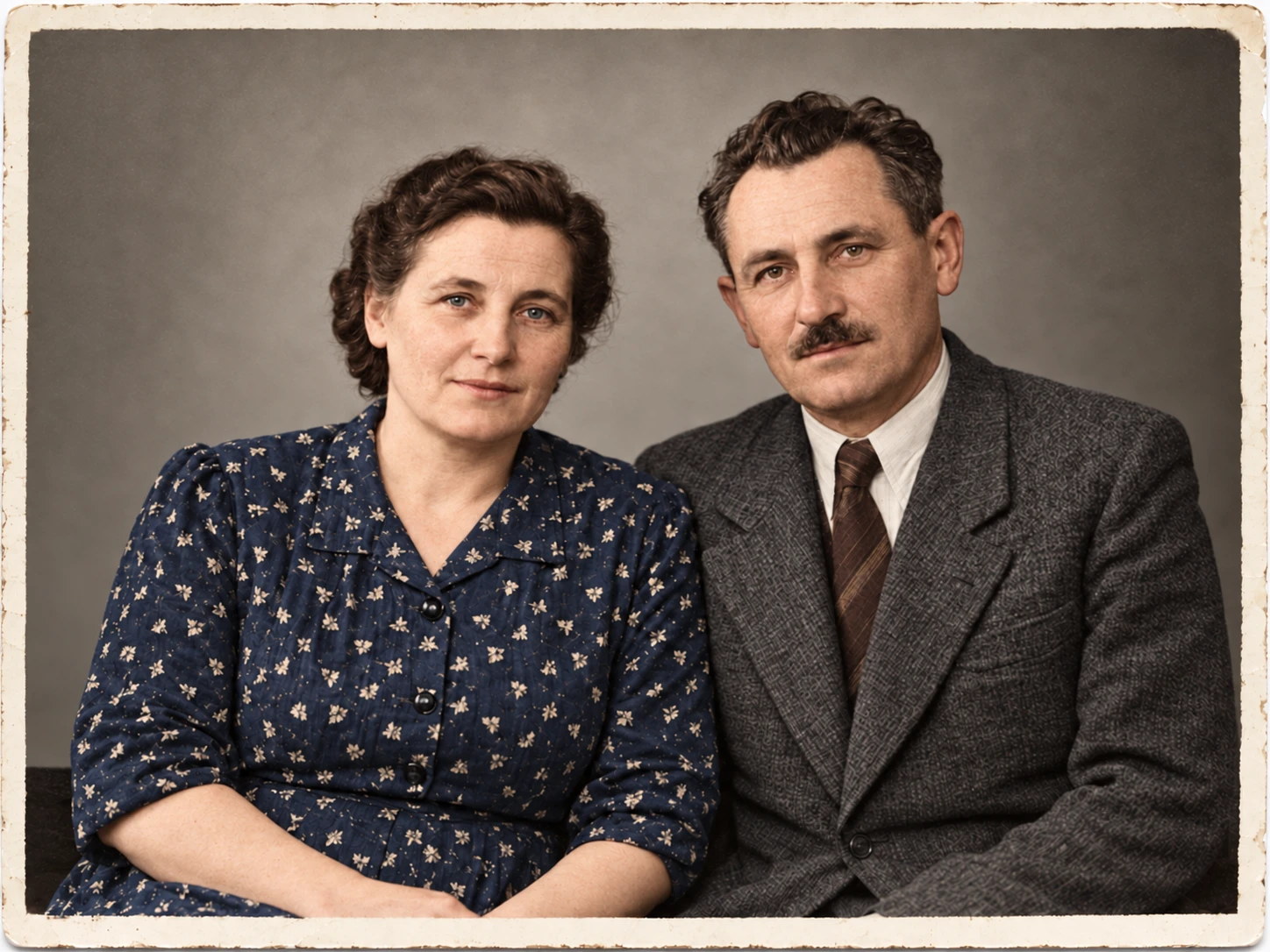
Open the before-and-after comparison with a slider. The tool helps view the same area of both versions. It does not upload your photos: it only shows our practice files.
First, Secure the Paper Original
Do not forcibly flatten a cracked photo or detach it from glass or an album if it is glued. Do not wipe the photographic emulsion with household detergent. For fragile, moldy, or valuable material, start with a conservation consultation. A home scanner with an automatic feeder can damage delicate prints; Massachusetts Archives emphasizes assessing the condition of the material and selecting the device.
Before digitizing, note what is on the back: signature, date, studio stamp. Scan both sides. Do not write the date on the photograph itself. If a family member recognizes individuals, also record the source of that information and the degree of certainty, e.g., “according to aunt’s account” instead of presenting conjecture as fact.
Scanning: A Good File Gives More Control
- Clean the scanner glass according to the device's instructions and ensure there are no streaks.
- Place the photo without forcibly flattening it. Leave a small margin around the entire print.
- Select a resolution appropriate for the size and planned print. For many prints, 300–600 ppi is a useful starting point; a small photo for enlargement may require more.
- Save the master file in a lossless format, such as TIFF or PNG, and a separate lighter working copy.
- Turn off automatic face beautification and aggressive noise reduction to avoid altering the source during the scan.
- Check sharpness on the monitor before scanning the entire album.
The guidelines from Massachusetts Archives differentiate parameters for various types of materials; there is no single ideal resolution for everything. Simply entering a higher dpi number will not recreate details that the scanner did not optically capture.
If You Only Have a Phone
Place the print on a flat, matte surface and use even lighting without reflections. Position the camera parallel, not at an angle. Do not photograph through the glossy album cover if it can be safely avoided. Take several shots and choose the sharp, non-blurry ones. Keep the full frame, and make perspective corrections on the copy.
File Organization Before the First Edit
Example names: family-001-front-scan.tif, family-001-back-scan.tif, family-001-repair-v1.png, family-001-color-interpretation.jpg. In a separate text file, record the name of the tool, the date of editing, the command, and known limitations. Avoid names suggesting a specific date or identity if you are still determining them.
National Archives recommends keeping physical originals even after digitization and describes the principle of three copies on two types of media, with one stored off-site. Simply syncing a folder does not protect against every mistake: deletion can sync to other devices. Check if you know how to recover an earlier version.
Choosing a Tool: Three Ways to Work
| Method | When It Is Convenient | What to Control |
|---|---|---|
| ChatGPT with Image Editing | When you want to describe the repair in plain language and compare variants | Likeness, changes beyond damage, photo processing rules |
| Photoshop and Neural Filters | When you need to work with layers and local control of corrections | Filter range, masks, face quality, and how to save the result |
| Google Photos and Available Photo Enhancement Features | For simpler corrections on a supported device | Availability of a given option, intensity, and saving as a copy |
We do not provide prices or limits that cannot be transferred to all accounts. Before working on a larger collection, check the current plan and terms of service. If you do not want to upload a private photo to an external service, choose a local editor and check which of its features actually work locally.
Path A: Careful Image Editing in ChatGPT
Official OpenAI documentation describes how to attach an image and provide editing instructions. When making precise changes, specify both what should change and what elements to retain. The availability of the interface depends on the version you are using. You do not need to start by choosing a trendy model name: it is more important to correctly indicate the file as the image to be edited.
- Work on a copy of the scan. Attach the file and state that it is the target of the edit, not a loose inspiration.
- In the first command, request only damage removal and moderate contrast correction.
- Receive the output image, download it, and compare it with the scan. A mere text response saying “I fixed it” is not an output file.
- If the face has changed, return to the source. Another edit of the already altered face may cement the error.
- Only after accepting the black-and-white version prepare a separate color interpretation.
Prompt 1 – Conservative Repair
Edit the attached photo. Remove only minor scratches, dust, spots, and creases. Preserve faces, age, gaze, expression, hairstyles, clothing, proportions, and framing. Do not rejuvenate, smooth skin, or add teeth, jewelry, or new elements. Keep the photograph black-and-white and maintain natural grain. Do not recreate unreadable details as certain.
Prompt 2 – Limiting the Scope of Correction
Work again on the original scan. Repair only the scratch in the lower right corner on the clothing. Faces and the rest of the image should remain unchanged. Do not increase overall contrast or sharpness.
Prompt 3 – Gentle Readability
Moderately improve the readability of the attached photograph. Limit excessive sharpening and retain the texture of the paper. Do not create new eyelashes, eye shapes, captions, or fabric patterns. If a fragment is too unreadable, leave its uncertainty.
These commands are our editorial templates, not a guarantee of preserving all pixels. If you need strict control over a small area, local work on a layer in an editor may be better.
Path B: Photoshop, Neural Filters, and Layers
Adobe documentation guides you to Neural Filters through the Filter menu and describes filter selection and output methods. The set of available filters may require downloading and differ between versions. Photo Restoration and Colorize serve different tasks: they do not need to be applied simultaneously.
- Open a copy of the source and keep the untouched reference layer.
- Check the availability of the appropriate filter in Neural Filters. If you do not see it, verify the version and documentation instead of installing a random plugin.
- Start with gentle intensity. View the preview at 100%, especially the eyes, mouth, and edges of clothing.
- If the interface provides an appropriate output option, save the effect on a new layer or in another reversible mode.
- Limit the correction with a mask or local tools to areas needing repair.
- Save the working file with layers and a separate export for viewing.
We do not present our example as a test of Photoshop: the shown illustrations were made in a generative tool. The Adobe path is described based on the manufacturer's documentation. This is an important distinction when comparing the capabilities of programs.
Path C: Simpler Correction in Google Photos
Google support for supported Pixel devices describes editing and features such as Unblur. Other devices and app versions may have a different set of options. Open the photograph, select edit, and check the available tools. If there is an intensity effect, start small. Choose to save as a copy to retain the earlier image.
Limiting blur is not a full restoration of the photo. We do not promise to repair a torn fragment or reliably recover a face from a few pixels. Use this path for convenient enhancement of visibility, and evaluate important family photographs on a larger screen as well.
Coloring Without Pretending to Have Historical Knowledge
If you know the color of a uniform, dress, or eyes from other reliable photographs or descriptions, provide that information and retain its source. Without this, treat color as an interpretation. AI will not reliably determine the color of clothing from the brightness of a black-and-white photo alone.
Prompt 4 – Coloring with Marked Uncertainty
Color conservatively the same photograph, without changing the face, age, clothing, and background. Use natural, muted colors. Confirmed information: [enter only what you know from the source]. Treat other colors as interpretation. Do not add new objects, captions, or patterns.
Prompt 5 – Correcting a Specific Color
On the attached colored version, change only the color of the jacket to dark gray. Retain its cut and texture. Do not change the face, skin, hair, dress, or background.
For the family album, include both versions and label them “digital coloring, colors partially interpreted.” If someone later uses the file for family history, the label will prevent the imagined color from being treated as evidence.
Similarity Check: Review Ten Areas
- Shape of the eyes, spacing of the pupils, and direction of the gaze.
- Nose: width, profile, and position relative to the mouth.
- Mouth: shape, tension, and presence or absence of visible teeth.
- Jawline, ears, and characteristic asymmetries.
- Wrinkles and marks significant for recognizing the person.
- Hairline, hairstyle, and facial hair.
- Hands and the number of visible fingers if present in the frame.
- Clothing pattern, buttons, medals, and jewelry.
- Captions, dates, and stamps – AI may distort them.
- Edges of the frame and background objects: did any new ones appear?
First, view the image as a whole, then at 100%, and then switch between before and after at the same magnification. Mere attractiveness is not a criterion for similarity. It is good to ask another family member for an assessment, especially when you have worked on the image for a long time.
If the Result Is Too Smooth or the Face Looks Different
| Problem | What to Do |
|---|---|
| Plastic Skin | Return to the source, reduce the noise reduction range, and turn off beautification |
| New Smile or Teeth | Discard the version of the face; repeat the repair limited to damage |
| Changed Captions | Keep the caption from the scan or work locally; do not treat reconstruction as transcription |
| Scratch Remains | Repair a smaller area instead of reprocessing the entire face |
| Sharpening Creates Outlines | Limit intensity; check the actual print size |
| Colors Are Bright | Reduce saturation and keep the black-and-white version as the main one |
Privacy and Rights to the Photo
Before uploading a photograph to a service, check its data usage, storage, and sharing policies. Do not assume that every tool named “local AI” does not send anything to the cloud. Consider whether the photograph reveals a document, address, or sensitive family situation. You can use our fictional characters for practice.
Having a paper print does not always mean having all rights to its public publication. Consent to show a photo within the family and using it in advertising are different situations. When sharing living individuals, consider their privacy, and for a larger archival project, establish the origin and rights to the material.
Export and Preparing a Gift
For the archive, keep the source and working file, and prepare a reasonably sized copy for sending to family. Do not repeatedly overwrite the only JPEG after successive edits. For printing, check the lab's requirements and view a sample: screen brightness can give a different impression than a print. Simply saving “300 dpi” in the metadata does not increase the number of pixels.
For the gift, include a caption with the individuals, place, and date, if known, along with a brief note about the restoration and coloring performed. It is also worth adding the unchanged scan of the back with family writing. Often, this note is as valuable as the improved face.
FAQ
Can AI Recover Real Details from a Very Blurry Face?
It can generate credibly looking details, but this does not guarantee that they were present in the original. The less information, the greater the role of interpretation.
Does a Black-and-White Photo Need to Be Colored?
No. A conservatively repaired monochrome version may best serve the archival purpose.
Is a 600 ppi Scan Always Better?
Not in every application and not regardless of the device. Parameters are selected based on the original, scanner capabilities, and planned use.
Is One Copy in the Cloud Enough?
This is a risky point of a single failure or mistake. Keep multiple copies and check file recovery.
Can I Practice on the Photos from This Article?
Yes, we provide them as synthetic practice material for this guide. Keep the designation of fictional, generated origin if you show the exercise further.
Sources and Workshop Materials
- National Archives: digitizing family documents and photographs.
- Massachusetts Archives: parameters and organization of scanning.
- OpenAI: generating and editing images.
- Adobe: using Neural Filters.
- Google: editing tools on supported Pixel devices.
- All prompts and checklist in TXT.
- Interactive comparison of our example.
Comments (0)
No comments yet. Be the first!